Screenshot to markup in one hotkey.
Press ⇧⌘S, drag, annotate, paste. Fully offline. Nothing uploaded, ever.
 $1.99 / £1.99 one-time · macOS 13+
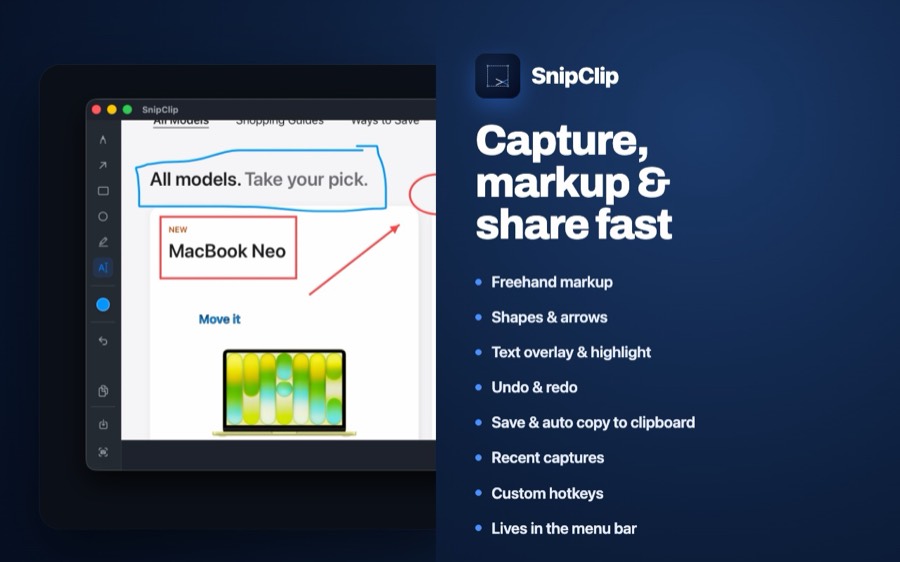
A menu-bar screenshot tool for Mac that gets you from capture to markup in one hotkey — ⇧⌘S, drag-select, mark up, copy or share. Fully offline, nothing uploaded.
What it does
6 tools, zero clicks away
Global hotkey capture with instant markup: pen, arrow, rectangle, circle, highlight, and text.
Scrolling Capture
Select a region, then keep scrolling the window or webpage underneath while SnipClip stitches it into one tall image, up to 12,000px, ready in the markup editor when you hit Stop.
3 · 5 · 10 second countdown
Full-screen capture with a delay, straight to PNG or JPEG.
Screen recording
Start/stop from the menu bar, saves to .mp4 in a folder of your choice, with a red menu bar icon and live timer while recording (video only, no audio).
Two independently remappable hotkeys
One for capture (⇧⌘S default), one for screen recording (⇧⌘R default).
Nothing leaves your Mac
Fully offline — no cloud sync, no account, no analytics, no network requests.
Last six captures
Sitting in the menu bar, ready to re-copy or re-open in the editor.
Colour picker with opacity, Launch at Login
A full colour picker with opacity control, and Launch at Login toggled from Preferences.
$1.99 / £1.99 one-time
No subscription, no trial, no in-app purchases. Requires macOS 13+.
Common questions
Is there a free trial?
No — SnipClip is a straight $1.99 (£1.99) one-time purchase from the App Store. That purchase is the unlock; there's nothing further to buy inside the app.
What does it do that the built-in macOS Screenshot tool doesn't?
macOS's own shortcuts (⇧⌘3/4/5) capture; markup is a separate step through Preview. SnipClip combines both into one hotkey — select an area and the markup toolbar is already open by the time you've finished dragging.
Does it upload my screenshots anywhere?
No. SnipClip has no cloud sync, no account, and makes no network requests — every capture stays on your Mac unless you choose to share it yourself.
How does Scrolling Capture work?
Select a region from the menu bar's "Scrolling Capture" option, then scroll the window or page yourself — SnipClip watches that region and stitches new content onto the bottom of the image as it appears, up to 12,000px tall. Click Stop and it lands straight in the markup editor. It works well for chat logs, long documents, and most scrollable windows and webpages; like any scrolling-capture tool, unusual or animated content can occasionally trip it up.
Reference
Guides
Every Mac Screenshot Shortcut Explained (⇧⌘3, ⇧⌘4, ⇧⌘5)
Three shortcuts cover every screenshot scenario on Mac. Here's exactly what each one does, and the options most people never discover.
How to Annotate a Screenshot on Mac (Arrows, Boxes, Text)
Mac has a built-in markup tool — it's just easy to miss. Here's how to use it, and when a dedicated tool is worth the switch.
Why a Menu-Bar Screenshot Tool Beats a Full App Window
The best tool for a five-second task is the one that never asks you to switch windows to use it.
Windows Snipping Tool vs Mac: Every Screenshot & Markup Option Compared
Snipping Tool bundles capture and markup into one app. Here's every way to match that on Mac — built-in, free third-party, and paid — compared side by side.